In this article, you will learn how to create reusable note templates for your team.
Saved snippets and note templates help streamline your workflow and keep your team’s communication consistent. By building out standard messages, you save time and can quickly drop pre-written notes into different areas of your workflow rather than typing them from scratch.
Building a new note template
In order to set up a standard message, you will need to access your templates settings.
1. Navigate to Settings:
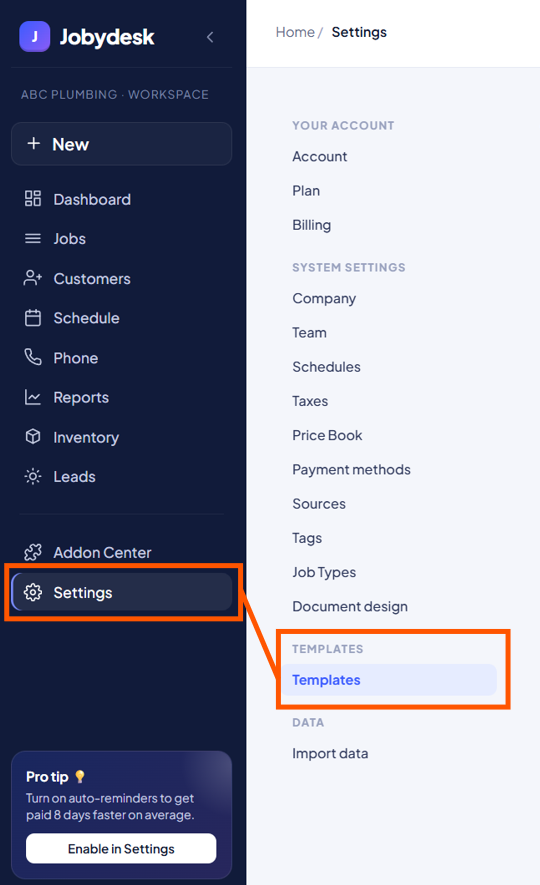
From the bottom of the left sidebar, click Settings.
2. Access Templates:
Under the System Settings menu, select Templates.
3. Select a Note Category:
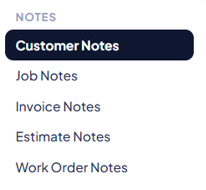
Under the Notes section, choose the specific category where you want to create a saved snippet. Your options include Customer Notes, Job Notes, Invoice Notes, Estimate Notes, and Work Order Notes.
4. Add a New Template:
Click the black + New template button in the top right corner to open the creation panel on the right side of your screen.
5. Draft the Content:
Build your standard message by filling out the required fields.
- Enter a clear Name so your team can easily find and identify it from the template picker.
- Type your message into the Content box. You can use the rich text toolbar to add emojis, bold, italicize, underline, insert links, or create bulleted and numbered lists.
6. Save your Template:
When your message looks good, click the Create template button at the bottom of the panel.
Your new template is now saved and ready to be dropped into any relevant note to streamline your daily workflow.