In this article, you will learn how to create checklists.
Creating checklists is a great quality-control tool for service professionals who perform ongoing work for customers. Instead of manually outlining steps for every new job, JobyDesk lets you create and assign standardized forms for your team in advance.
Creating a checklist
In order to create a checklist, you will need to build a new template in your settings.
1. From the sidebar menu, select Settings > Templates
2. Under the Checklists tab, select Create your first checklist (or click the new checklist button if you already have existing templates).
3. Complete the following template details:

- Template name
- Job Types (select which specific Job Types this checklist should automatically apply to)
4. Build your checklist form: Choose the type of item to add to your checklist. Select from the following input types to best fit your data collection needs:
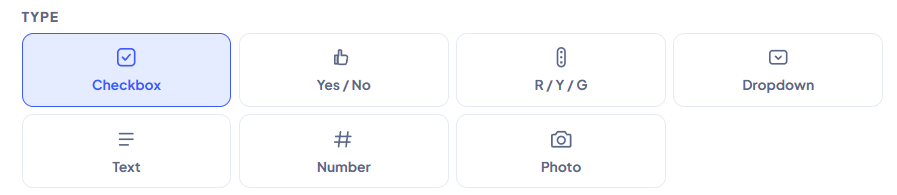
- Checkbox: A standard check-off box for task completion.
- Yes / No: A simple binary option for questions requiring a definitive yes or no answer.
- R / Y / G: A Red, Yellow, or Green status selection, ideal for indicating the condition or safety level of an item.
- Dropdown: A custom list of multiple choices for the technician to select from.
- Text: An open field allowing the technician to type out written notes or descriptions.
- Number: A field restricted to numerical entries, useful for logging measurements or quantities.
- Photo: Prompts the user to capture or upload an image directly to the checklist.
5. After configuring your selected item type, check the Required box if this specific field is mandatory for your technicians to complete before finishing the job.

6. If you need to build out the form further, click the Add item button to append additional fields as necessary.

7. After entering all of the checklist details, select Save template.
Note
Keep your checklists as concise as possible! Breaking down massive lists into smaller, job-specific templates helps keep your field team moving quickly without getting overwhelmed by administrative work.
You can view your active checklists by accessing the Templates page and scrolling down to your saved checklist menu.
Related Links: