Welcome to the JobyDesk guide on setting up Job Types.
Job Types act as your customizable service templates. Instead of manually adding the same line items, descriptions, and checklists every time a customer calls for a common service, you can create a Job Type to automatically pre-load everything your technician needs. This ensures your pricing is consistent and saves your dispatchers valuable time.
Here is how to build standard templates for your most common services.
Building a New Job Type
1. Navigate to Job Types
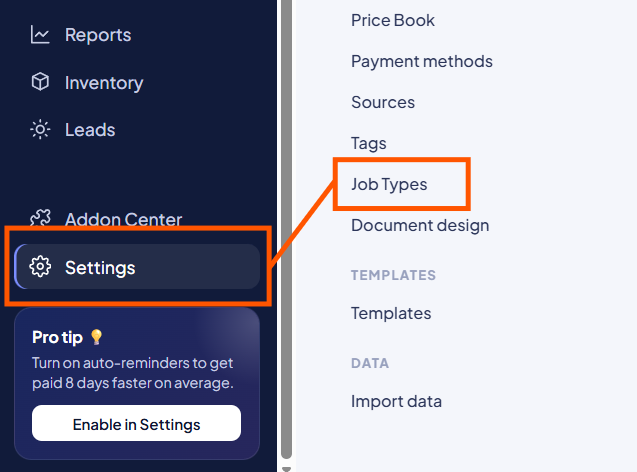
Head to the bottom left of your sidebar and click on Settings. From the Settings menu, select Job Types.
2. Start a New Template
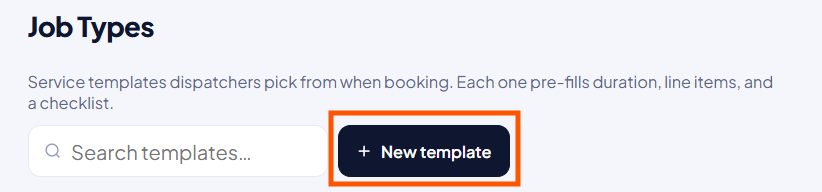
Click the + Create New Template button to open the creation menu.
3. Define the Basics
Give your new template a clear identity so your team can easily find it:
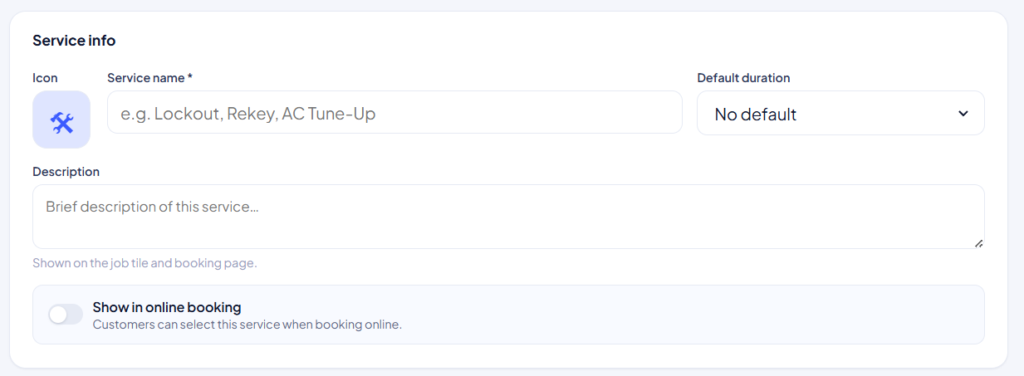
- Name: Enter a clear service name (e.g., Car Lockout Response or Automotive Key Generation).
- Icon: Choose a specific icon to help this job type stand out visually on your Schedule and Calendar.
- Description: Add a brief summary of what this service entails.
4. Attach Price Book Items (Bundling)
This is where Job Types save you the most time. You can attach standard charges directly to the template:
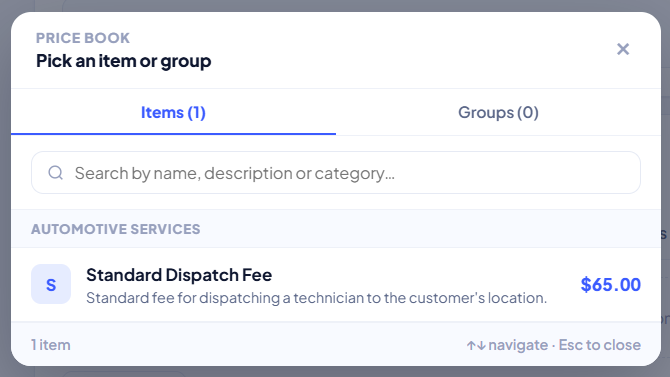
Use the search bar to pull in individual services, parts, or predefined groups from your Price Book.
Whenever this Job Type is selected in the future, these items will automatically generate on the estimate or invoice.
5. Add Checklists and Forms
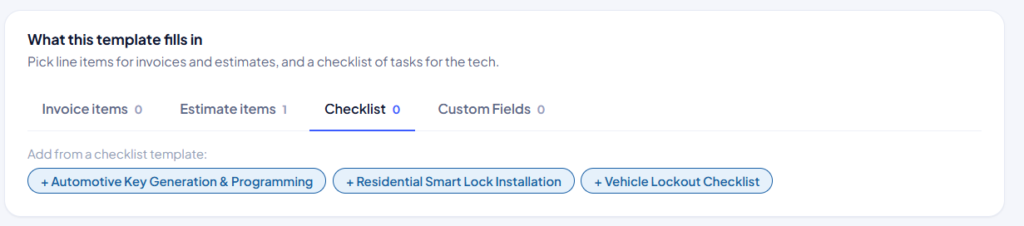
Ensure your technicians follow standard operating procedures in the field by attaching required forms:
Select any mandatory checklists, safety waivers, or inspection forms that must be completed before the job is closed out.
6. Save Your Job Type
Review your details and click Save (or Create).
Your new Job Type is now active! The next time you click + New Job, this template will be available in the dropdown menu, ready to instantly populate your job card with accurate pricing and instructions.
Pro Tip
To get the most out of Job Types, we highly recommend building out your Price Book first. Having your individual services and labor fees already organized makes setting up these templates incredibly fast.
Related Links: