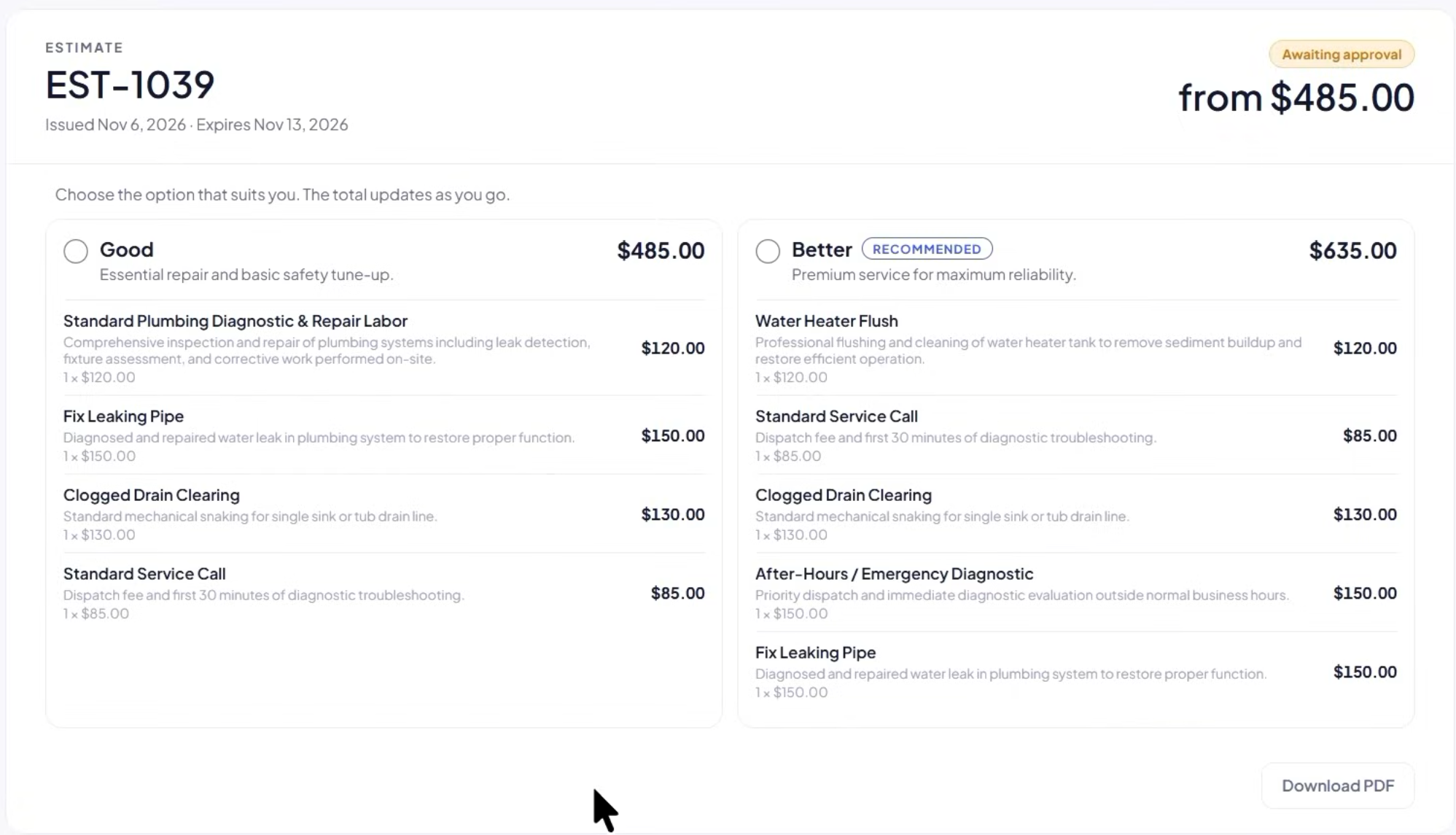
In this article, you will learn how to create multi-option estimates—commonly known as “good, better, best” packages—to present flexible options to your clients.
Offering multi-tiered proposals empowers your customers with choices while helping boost your approval rates and average ticket size. By building side-by-side package comparisons, you can clearly present different project scopes and highlight your recommended services directly in the client portal.
Building a multi-option estimate
In order to create and send a multi-option estimate, you will need to access your JobyDesk account.
1. Access the Estimate Builder:
Open a quick estimate from the + New menu on the left sidebar. Alternatively, go to Customers on the sidebar, select your customer, click + Create New, and choose New Estimate.
2. Set Estimate Details:
Under Estimate Details, verify the issue date and select an expiration date. Enter a clear title to define the project scope for the customer, along with any internal notes for your team.
3. Add Estimate Options:
Under the Options and Line Items section, click + Add Another Option to create tiered packages (e.g., “Good” and “Better”).

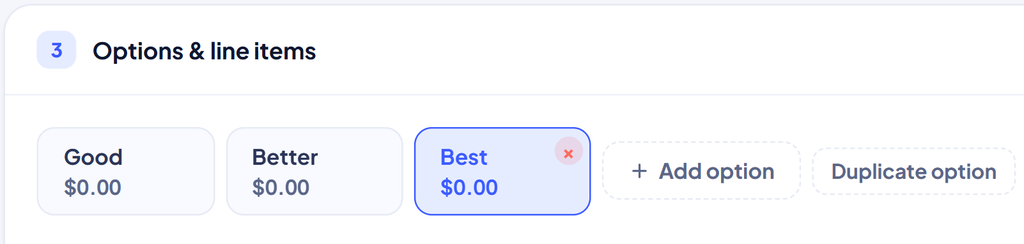
- Click Duplicate Option to copy an existing package quickly.
- Click + Add Option Tab to add more tiers as needed.
- For each package, customize the option name and add a one-line tagline to highlight value.
- Toggle the Show as Recommended switch to visually highlight your preferred package.
4. Populate Line Items:
Build custom line items by clicking + Add Item, or click From Catalog to import individual services, inventory parts, or complete item packages directly from your price book. Click over to each tier tab to populate its specific line items.
5. Send to Customer:
Click Send Estimate in the top right corner. Select whether to deliver via email or SMS, review your message and PDF attachment settings, and click Send Estimate.
Note
Once your client approves a package in their customer portal, JobyDesk automatically updates the estimate status to “Approved” and locks the document to reflect the agreed scope. The winning tier is marked with a green Chosen badge, and the client’s digital signature is permanently stamped onto the document.