In this article, you will learn how to configure and deploy the customer portal for your clients.
Implementing a self-service customer portal empowers your clients to review their service history, approve estimates, settle invoices, and request new bookings independently. This modern digital storefront enhances the overall client experience while drastically minimizing administrative phone calls to your office.
Configuring your customer portal
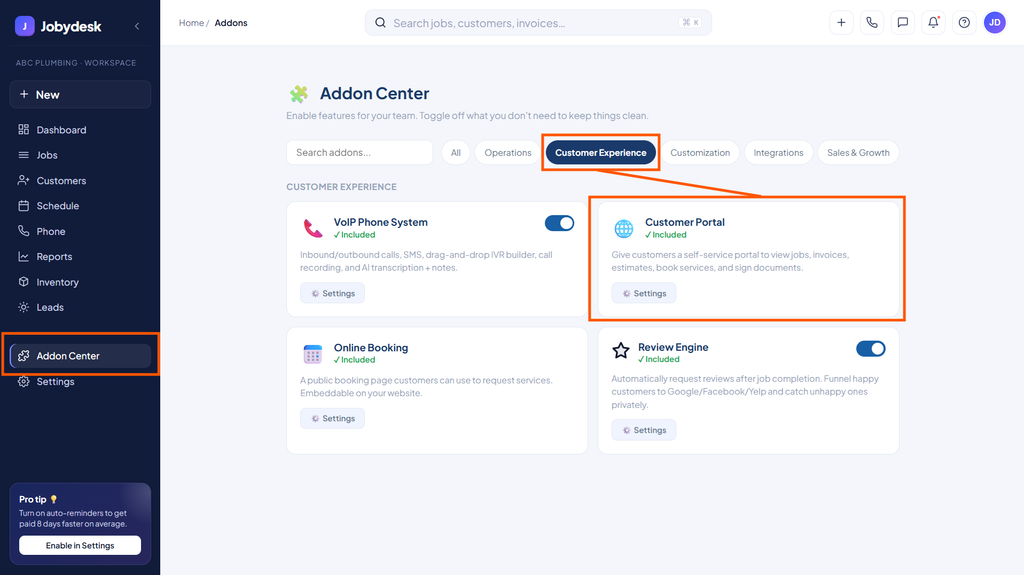
In order to customize and enable the client portal, you will need to access your add-on center.
1. Access the Customer Portal Settings:
Navigate to the Add-on Center on your left-hand sidebar, locate the Customer Portal card under the Customer Experience category, and click Settings.
2. Set Client Permissions:
Use the toggle switches inside the settings modal to manage granular permissions for what your clients can view and do:
- Allow them to view job history.
- Allow online invoice payments.
- Allow estimate approvals.
- Allow document signing.
- Allow booking requests for new services.
3. Personalize the Branding:
Scroll down to the branding section to customize the visual presentation of the interface:
- Input a custom welcome message to greet your clients.
- Utilize the RGB color picker to set an accent color that matches your company’s branding.
4. Save and Deploy:
Click Save settings to finalize your configuration.
Once your portal is configured, the most efficient workflow to distribute access is through your standard billing process. When you complete a job and select Send invoice from the invoice preview screen, the system automatically drafts an email containing a direct link to pay. Clicking the View invoice button instantly authenticates and routes your customer directly into their personalized dashboard.
Note
The system automatically generates a unique, secure link for every individual customer in your database, eliminating the need for manual link creation or individual login management.
Related articles